CSV and Excel import: the whole wizard, column by column
A CSV has no size limit — your browser streams the rows in. Excel caps at 20 MB and 50,000 rows. Each column's guessed type is yours to correct.
Updated September 2026
The import wizard turns a file into a table in three moves: read the file, show you what it thinks each column is, then — only after you've agreed — check the values and write. The guessing is honest about being a guess: every column shows its verdict next to real sample values, and every verdict is yours to overrule.
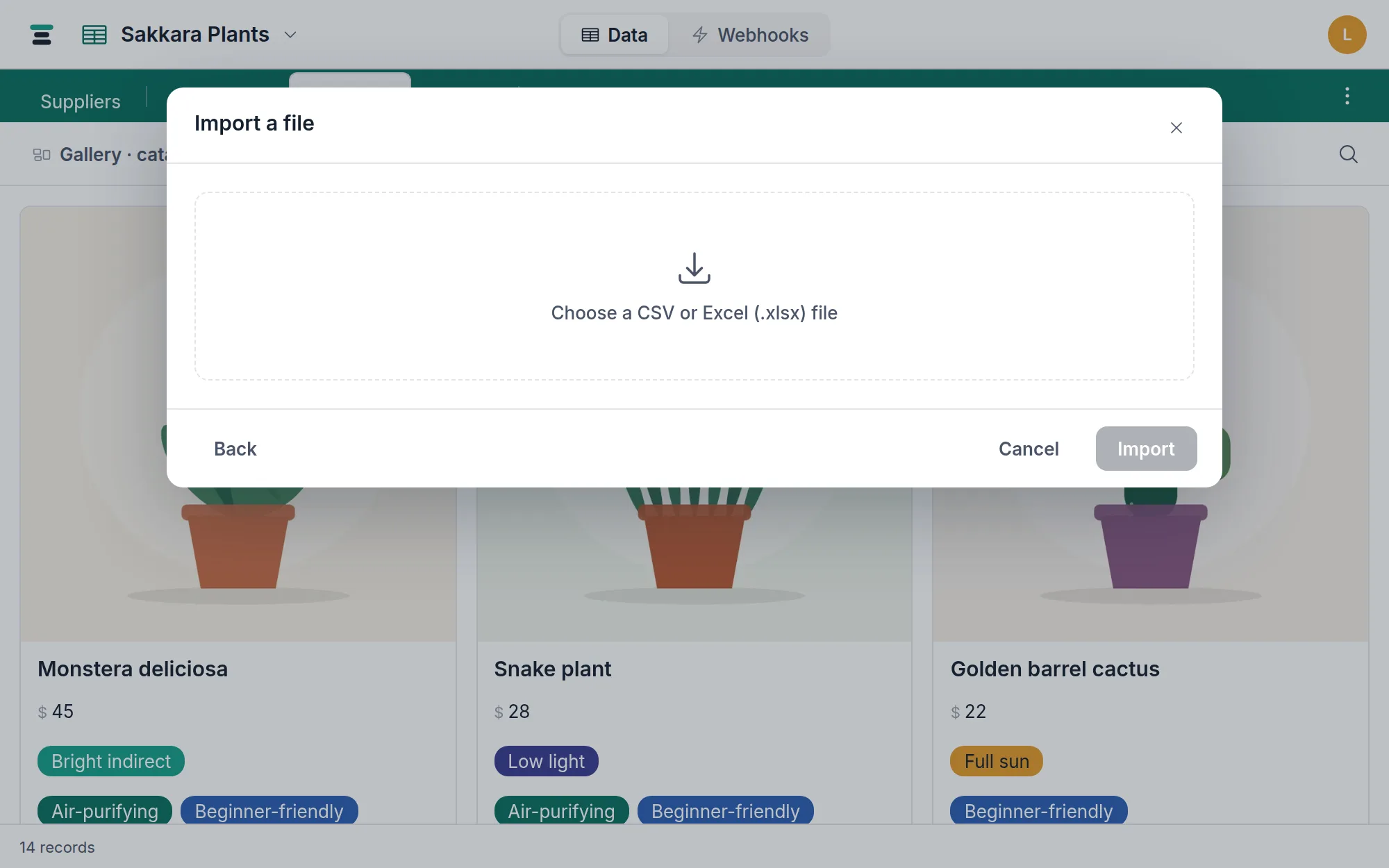
The file
The ⋮ button at the right of the table tabs opens Import data… →
Upload a CSV or Excel file. (Starting fresh? The New database
picker's Import a spreadsheet card lands in the same wizard.) It takes
.csv, .tsv, .xlsx and .xls.
A CSV or TSV has no size limit. Your browser reads the file where it already sits and sends the rows in batches, so nothing has to be uploaded whole — a 500,000-row export is a normal import, with a progress bar and a Stop import button. The only ceiling is the one your database already has: 1,000,000 records.
An Excel workbook is capped at 20 MB and 50,000 rows per run, because a
.xlsx is a zip and has to be opened whole to be read. Saving it as CSV
removes the cap entirely.
The first row is read as headers. An Excel workbook imports its first sheet only; the header counts the rest — "2 extra sheet(s) ignored" — so nothing vanishes silently. A blank header becomes "Column N", and duplicate headers get numbered, so the default plan is always valid.
What the sniffer looks for
Types are guessed from each column's first 50 non-empty values (you see three of them as samples). In order of precedence:
- Checkbox — every value is
true/false/1/0/yes/no. - Currency — numbers with at most two decimals under a header that smells like money (price, cost, amount, total, fee).
- Number, percent — plain numerics; values ending in
%. - Date — ISO dates (
2026-08-05, with or without a time), and slash dates, below. If any sample carries a time, the field includes one. - Email, web address — every value matches the shape.
- Multi select — every value is a delimited list with 20 or fewer distinct entries overall.
- Single select — short values that repeat: 20 or fewer distinct, and no more than one distinct value for every two rows sampled. A column of names in a small file is text, because nothing in it recurs.
- Long text — line breaks, or anything past 200 characters.
- Anything else: single line text.
One guard runs before all of that: leading zeros. A column holding
00123 is never guessed as a number, because a number field would eat the
zeros — id columns stay text.
Slash dates, the honest way
03/04/2026 is March 4th or April 3rd depending on who wrote the file, and
nothing in the value says which. The sniffer looks for a day above 12 — the
one piece of real evidence — and sets Read dates as accordingly. When
no sample settles it, the control defaults to month-first and says so out
loud: "No day above 12 here, so both readings fit — worth a look." That
sentence is the difference between an import and a quietly wrong one.
The mapping step
Every column starts as Create new field with the guessed name and type — rename it, change the type (fourteen to pick from, text through multi select), or Skip it. Importing into a table you already have adds the third option, Map to existing field, which has its own guide.
Two field kinds never appear as create targets: links and attachments. A CSV cell has no record ids or file bytes to offer them, so the wizard does not pretend otherwise.
Links are one step, afterwards, not a slog. Import the column as plain text, then open its header menu and choose Link to another table…. Tabla matches the values against the target table — trimmed and case-insensitive — and shows you what it found before it writes anything: how many matched, how many will create a new record in the target, and how many matched more than one row.
It builds a new link field beside your text column and leaves that column exactly as it was, so nothing is lost if the match is wrong; deleting the original is a separate step you confirm afterwards. More in linked records.
For select columns, the wizard's full-file scan means every distinct value in the column — not only the sampled ones — becomes a choice, colored from the standard palette. A "select" that turns out to hold more than 100 distinct values is refused by name: "…has 214 distinct values — too many for a select field. Import it as text instead."
Validate, then write
Import N rows runs the rows through the plan before creating anything. A value that won't fit its column's type stops the run with the exact spot:
Row 3: "tall" isn't a number, needed for field "Qty".
How much a failure takes with it depends on the file, because the two doors send their rows differently.
An Excel file is read whole, so the check covers every row before any of them is written. Nothing lands on failure — in new-table mode, not even the table.
A CSV or TSV is streamed from your browser in batches of 2,000 rows, which is what lets it have no size limit at all. The check covers the batch being sent. Fail inside the first batch and it behaves the same way — the table it had just made is removed with it. Fail after that and the batches already written stay, and the wizard says how many rather than leaving you to guess: "…N rows landed before this and are in the table."
So on a long CSV, fix the cell and run again — but the half-filled table is still sitting there, so delete it first unless you meant to keep what landed.
One import runs at a time per person — a second attempt while one is writing gets "You already have an import running."
Round trips and the API twin
The importer reads Tabla's own export files
back cleanly: the UTF-8 byte-order mark is stripped, and the apostrophe the
exporter prefixes to formula-like cells ('+20 100…) is removed on the way
in, so a phone number survives the loop unchanged.
The same wizard exists as one REST call — POST https://tabladb.com/api/databases/:id/import, multipart, with the file
alone returning the sniffed preview and file + plan running the import.
The API reference has the exact shapes.
The questions people ask
Excel dates arrive as dates, right? Yes. Real date cells import as dates; date-only cells stay date-only rather than growing a spurious midnight.
Where do imported rows land? In the table, unfiltered. If the view you're looking at has a filter, some imported rows may be filtered out of sight — the footer count tells the truth.
Can I import into a linked table and have links resolve? Not from a file. The Airtable importer rebuilds links because it can read both sides; a lone CSV can't name records.