The single line text field
Plain text on one line: what it stores, the require-unique option, how it edits, filters and sorts, the API shape — and when long text is the better call.
Updated September 2026
The plainest field there is: text, one line of it. Names, order codes, SKUs, cities, titles — anything short enough to read whole in a cell. Both example tables in this guide come from a small plant shop's database, where Name on the Plants table is a single line text field holding "Monstera deliciosa".
It stores exactly what you type. No trimming, no casing, no interpretation — the one exception is line breaks, which a single-line field can't hold: a newline pasted or typed into the cell is collapsed to a space.
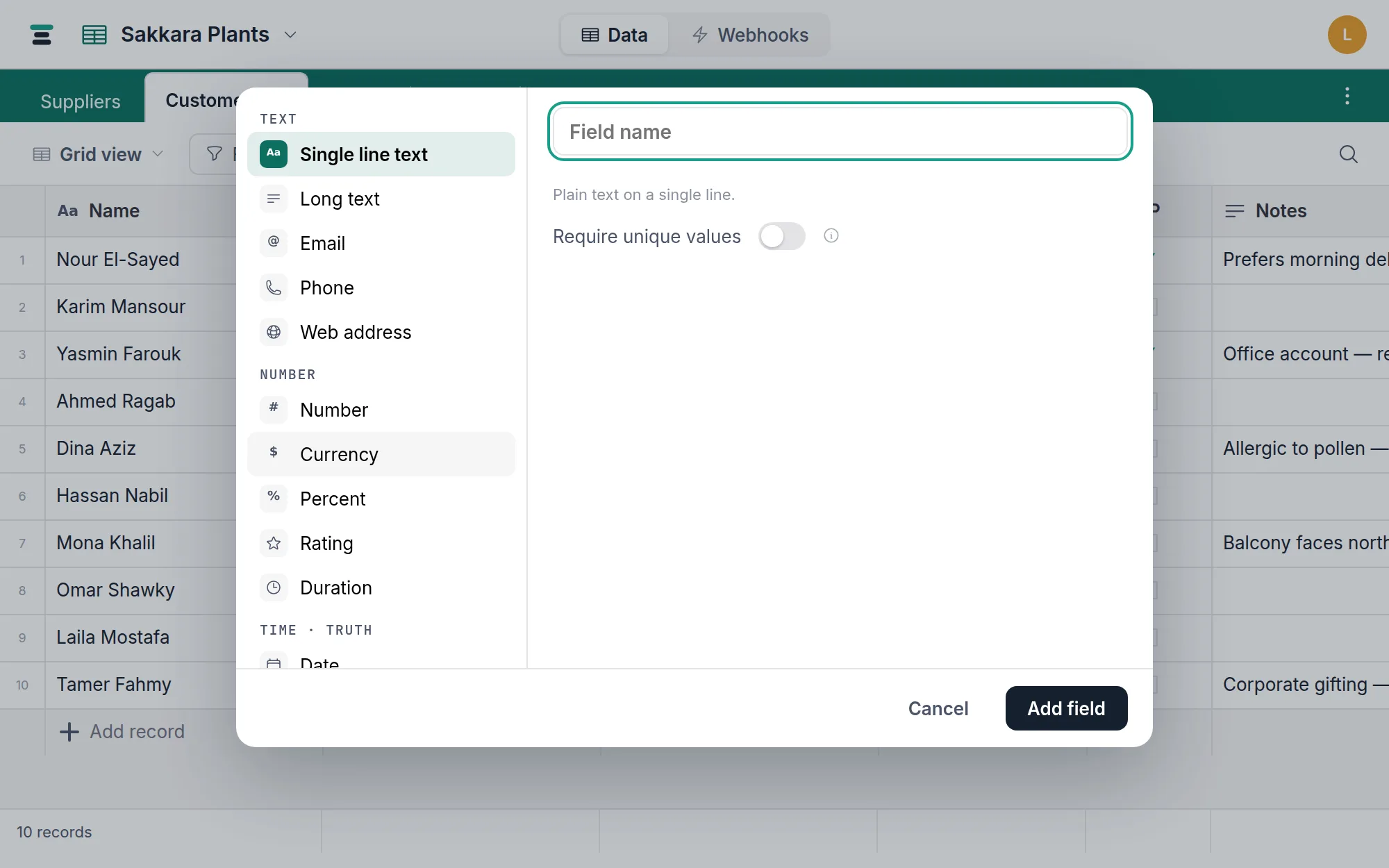
Create it
Click + at the end of the grid header (or a column header → Insert right), and Single line text is already selected — it's the default type. One option:
- Require unique values — no two records may share this value, enforced
by the database itself, not by a warning. It can only be switched on when
the field is created. Writing a duplicate is refused with the value named:
"SKU" must be unique — "A-1" already exists.The details are at Require unique values.
Editing
Click a cell and type — typing replaces the value, Enter commits and moves down, Escape cancels. In the record panel it's an ordinary text box. At the Short and Medium row heights the grid shows one line and truncates the rest; at Tall and Extra tall, long values wrap.
Text fields are covered by search, and this type can be the table's display field — the first field of a new table usually is.
Filtering and sorting
The operators: is, is not, contains, doesn't contain, is
empty, isn't empty. contains is case-insensitive. Sorting is
alphabetical; ascending puts empty cells last.
One honest wrinkle: an empty text cell can be stored as nothing at all or as an empty string, depending on how it was cleared. You will never see the difference — is empty catches both, and both read as blank.
Over the API
A text cell is a JSON string:
{ "fields": { "Name": "Monstera deliciosa" } }
Write it with a string; clear it with null. A number sent to a text field
is refused with Field "Name" expects text. — the API doesn't guess. Reading
an empty cell returns null or "" (see the wrinkle above); treat the two
the same, as Tabla's own filters do. The whole write grammar is at
Writing records over the API.
When long text is the better call
Reach for long text when the value is prose: notes, descriptions, anything you'd write in sentences. Long text holds line breaks, wraps in the grid a row height earlier, and can turn on rich formatting. Since the two share the same storage, converting between them later is free in both directions — nothing is truncated either way.
And two cases where text is the wrong family entirely: numbers you'll sum or
compare belong in a number field (text sorts 10
before 9), while emails, phone numbers, and URLs have
their own types that keep the value
clickable. Phone numbers in particular are not numbers — a number field would
eat the leading zero.