The board: records as cards you can drag
Stack records into a kanban board by a single select or a member field, drag a card to change its value, and hold before dragging on a phone.
Updated September 2026
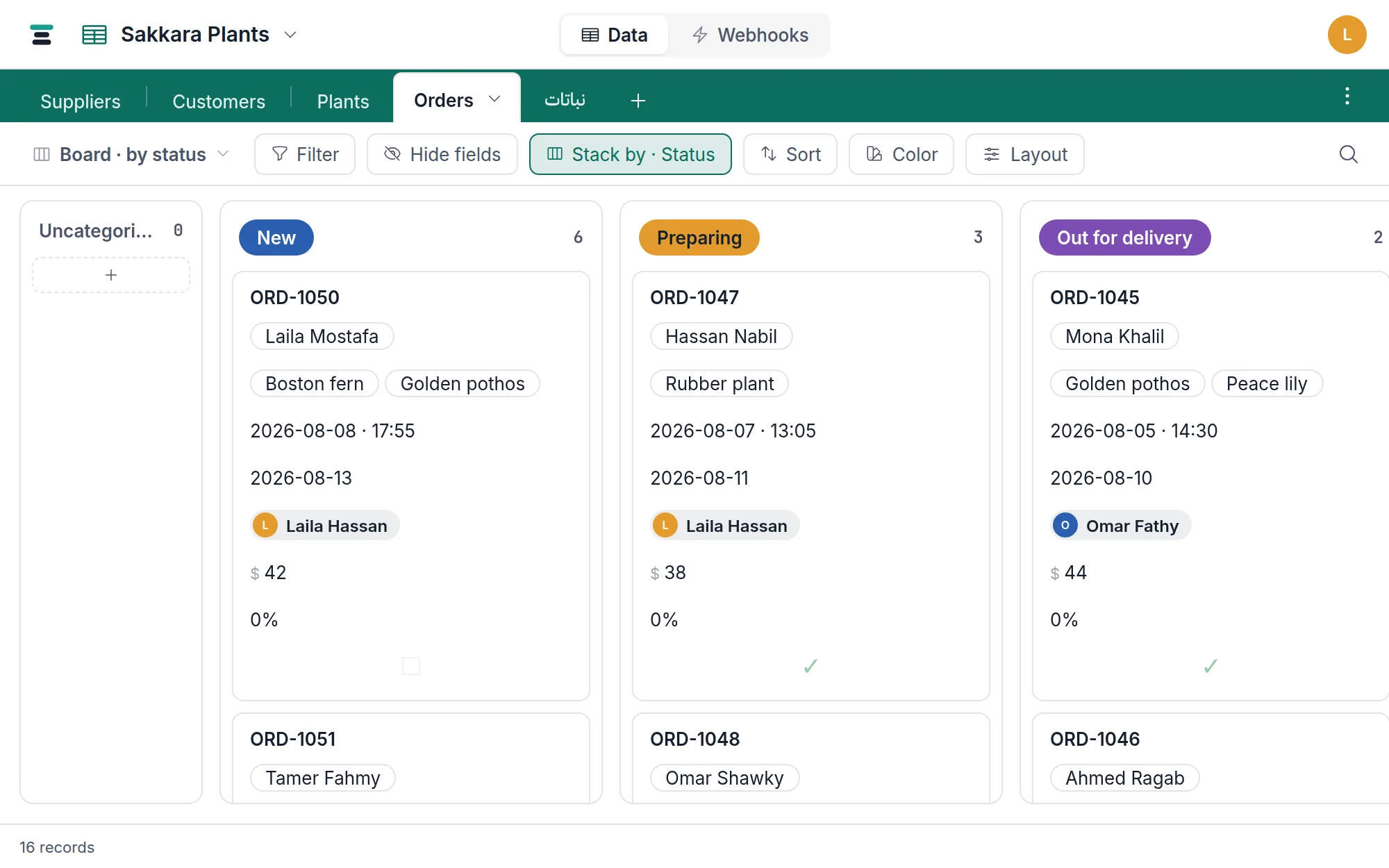
A board is the same table you already have, stood on end: one column per choice of a single-select field, or one column per person on a member field — one card per record. Nothing about the data changes — a card is a record, a column is a value — but for work that moves through stages, or across a team, seeing them side by side is the whole point.
An order pipeline is the obvious case. Stack orders by Status and the morning's question — what's new, what's being prepared, what's out the door — answers itself before anyone clicks anything.
Make one
- Open the view switcher at the left of the view bar and choose + Add view.
- Name it — "Board · by status" reads well in a list of views.
- In the Layout menu, pick Board.
- The board stacks by the table's first eligible field. To stack by a different one, use the Stack by button in the view bar.
A board stacks by a single-select or a member field. On a select, the columns are the field's choices, in the order the choices are defined, wearing their choice colors; on a member field, the columns are the people on the database, shown by name rather than by address. A table with neither field yet will ask you to pick or create one.
That list is shorter than what the grid can group by, and deliberately: dropping a card into a column writes a value, so the column has to mean exactly one thing to write. A cell that already holds three values — a multi-select, several members, several linked records — gives the drop no unambiguous answer, so those group in the grid and don't stack here.
Dragging is editing
Drag a card from Preparing to Out for delivery and the record's Status is now "Out for delivery" — everywhere. In the grid, in every filter, over the API, and in any webhook watching the table. A drag on the board is exactly the same edit as changing the select in the grid; the board is just the version of it you can do with your thumb on the trackpad.
That also means dragging respects everything editing respects: if you can't edit the record, you can't drag it, and a webhook with a condition on Status fires the moment the card lands.
On a phone or tablet, hold the card still for a moment first. It lifts, and then it follows your finger; let go over the column you want. Holding is what separates moving a card from scrolling past it — swipe straight away and the board scrolls as usual, so you never have to aim around the gesture. Drag a held card to either edge and the board scrolls itself to reach a column that is off screen. A single tap still opens the record, as it always did.
What a card shows
The card's title is the record's display field. Under it, the card shows the view's visible fields — minus the title and the stacking field itself, which would be redundant twice over. Use Hide fields to decide what earns a place on the card: boards read best with three or four fields, not ten.
If the table has an attachment field, the first image can ride on top of the card as a cover — the same convention as the gallery.
The Uncategorized column
A record with nothing in the stacking field — no choice, nobody assigned — has no column to live in, so the board gives it an honest one: Uncategorized, at the front. It's a per-view toggle — hide it if empty means "not on the board yet" in your workflow. Two details worth knowing:
- While you're dragging, Uncategorized always appears (at the end, so no column shifts under your cursor) — dropping a card there clears the field. "Take this off the board" stays possible even when the column is hidden.
- A record whose stored choice was deleted from the field lands in Uncategorized too, as does one assigned to somebody who has since left the database. The board never invents a column for a value that no longer exists.
Empty columns shrink to a slim strip instead of disappearing — still a drop target, no longer taking a lane's worth of space.
A board holding no cards at all is the one exception. The columns step aside for a single line — whether the table is empty, or a search or filter has narrowed it to nothing — and they come back the moment there is something to stack.
It's a view, so it remembers
The board is a saved view, which means it keeps its own filters, sorts, hidden fields and color rules, separate from every other view on the table. A "Board · this week" with a date filter and a "Board · everything" can live side by side, and switching between them is one click.
Filters apply before stacking: a board that filters to Paid is unchecked
shows only unpaid orders, stacked by status.
The questions people ask
Can a board stack by a date field? No — for dates the calendar is the view you actually want. For anything else outside the two, group the grid by it instead.
Does dragging reorder cards inside a column? Cards order by the view's sort. Give the view a sort you mean — newest first is the common one for pipelines — and every column obeys it.
Is there a limit to how many cards a board can hold? The board pages records in from the server the same way the grid does, so a big table stays usable — but a board with thousands of cards in one column is answering the wrong question. Filter it down to the slice that's actually in motion.